Before you start
Keep your original HEIC files. A JPG and the resulting PDF are convenient sharing copies, not replacements for a photo archive. The HEIC conversion creates standard 8-bit images and does not copy camera/GPS metadata, HDR or depth data, or Live Photo motion.
This route uses two separate tools. Files do not move between them automatically: you download the JPG results, then select those downloaded files in JPG to PDF.
- Start with the HEIC files saved on your device and a current browser with file-download support.
- Work with a small batch first. Both tools allow up to 20 files, 25 MiB per file and 100 MiB per input batch, with a 40-megapixel limit per image.
- You do not need a BrowserPine account. The website and conversion code still need to load over the network; local file processing is not a promise of offline access or anonymous browsing.
1. Convert the HEIC photos to JPG
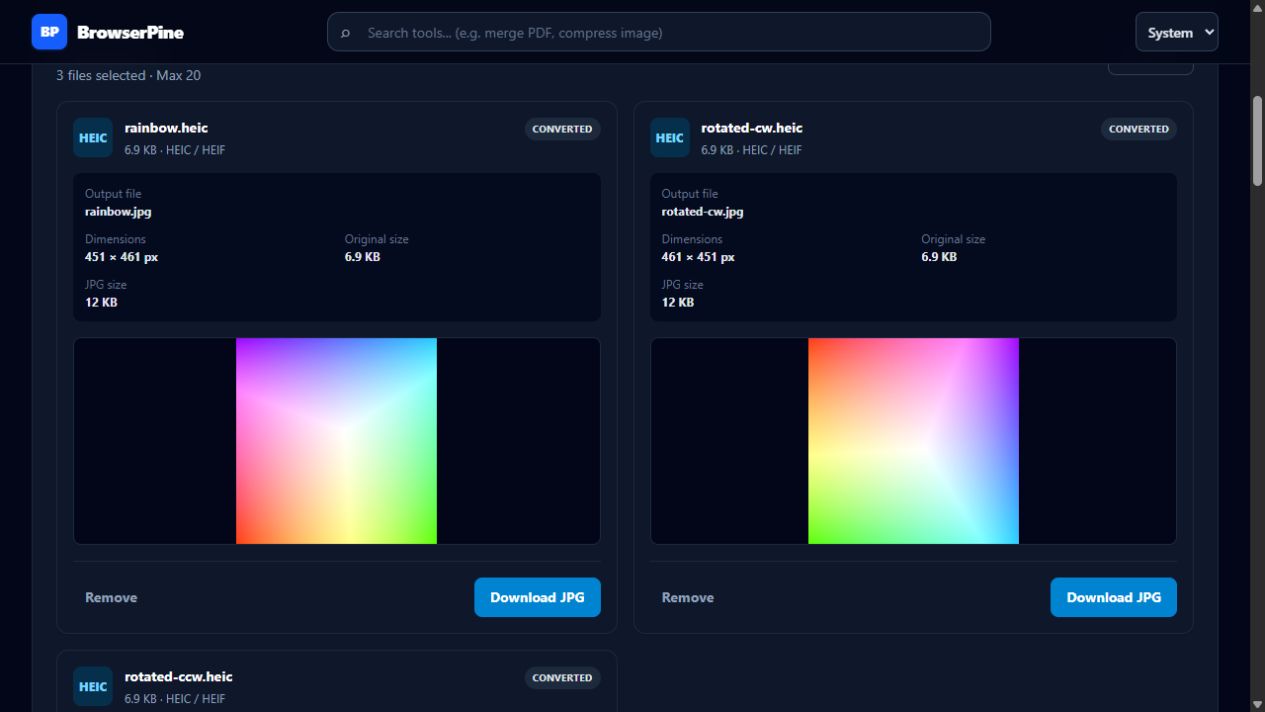
Open HEIC to JPG and choose your HEIC files. Check the list before starting, especially if your folder also contains videos, JPGs or other formats.
Choose the JPEG quality. Higher quality generally keeps more detail but produces larger JPG files. For photographs of text, inspect small letters in the result rather than assuming a particular quality setting will always be readable.
Start conversion and review each result. Download the successful JPGs individually. If you choose the ZIP download instead, extract it on your device first: the next tool needs the JPG files, not the ZIP archive.
2. Add the downloaded JPGs and arrange the pages
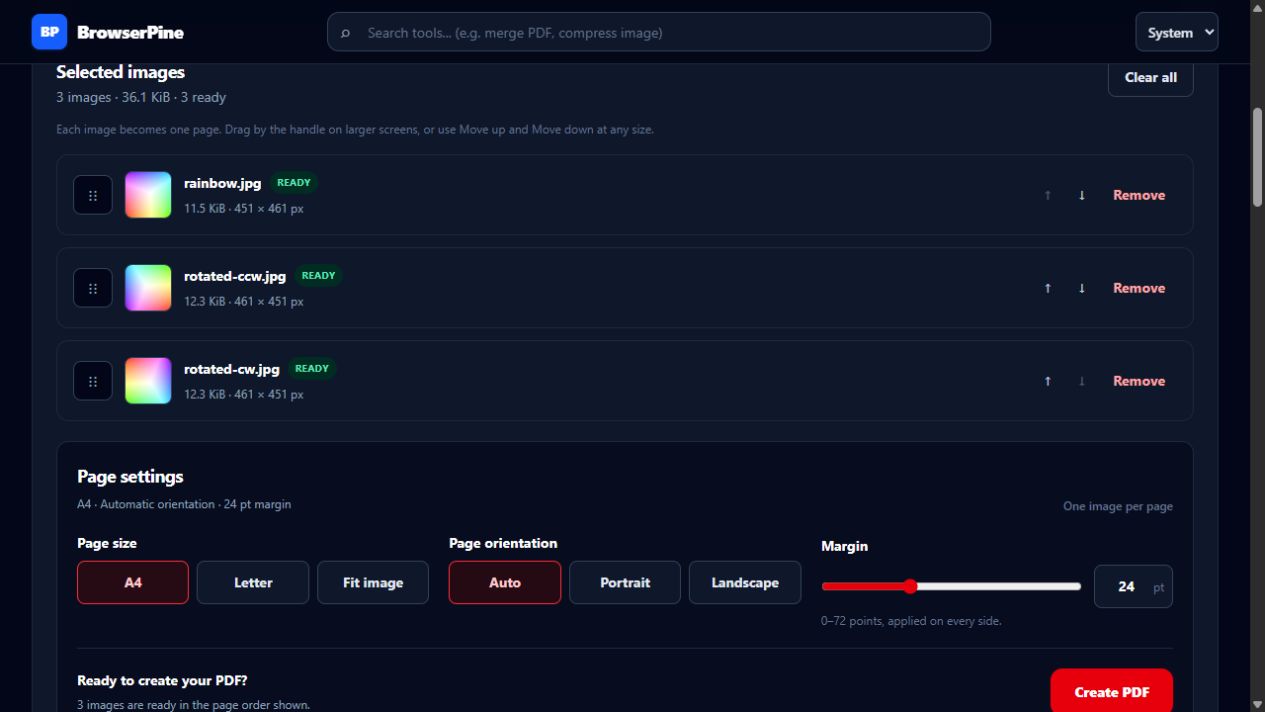
Open JPG to PDF. Select the JPG files you just downloaded, not the original HEICs. Each selected image becomes one PDF page.
The file limits apply again to these JPGs. A JPG can be larger than its source HEIC, so a successful HEIC conversion does not guarantee the whole output batch will fit the PDF tool's 25 MiB-per-file and 100 MiB-total limits. If needed, convert the originals again at a lower JPEG quality or resize the JPG copies first.
Arrange the images in the order you want to read them. Do not rely on the operating system's file-picker order. For example, a three-image submission might need the cover first, a supporting image second and the final image third.
- A4 or US Letter: choose a standard paper size when the recipient expects a printable document.
- Fit image: make each page follow its image's proportions, within the tool's bounded page size.
- Orientation and margin: check whether automatic orientation suits the images, then choose the surrounding space you need.
Images are fitted proportionally, not stretched or cropped to fill the paper. A different photo aspect ratio can leave white space even with a zero margin.
3. Create the PDF and inspect the actual file
Create the PDF, then use its download button. Open the downloaded document in your usual PDF viewer before sending it anywhere.
- Count: three selected JPGs should produce three pages.
- Order: the first, middle and last images should match the sequence you chose.
- Orientation: look for sideways or mirrored content.
- Readability: zoom in on any small print, numbers or fine detail.
- File size: check the recipient's attachment limit before submitting.
This creates an image-based PDF. It does not perform OCR or turn photographed text into searchable, editable text. If a form requires a searchable document, this workflow alone is not enough.
What we checked in this example
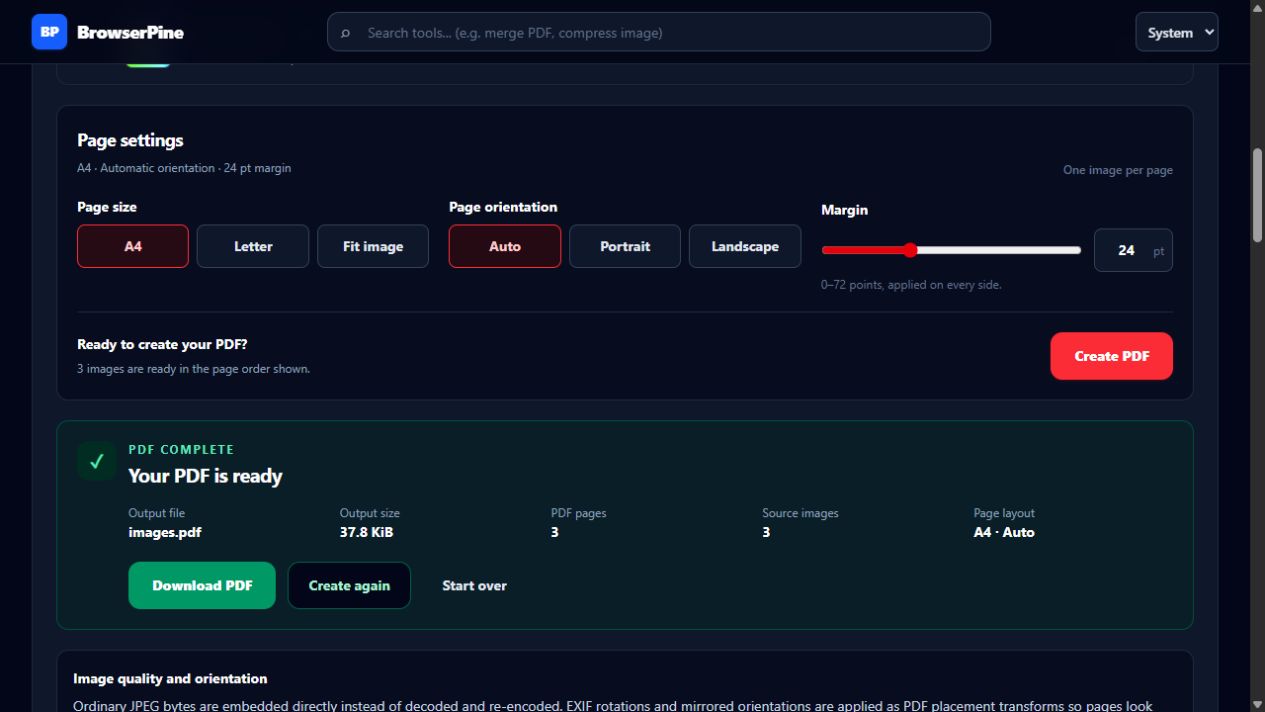
We ran this workflow in a Chromium-based browser on Windows using a local production preview of BrowserPine. The inputs were a small HEIC color test pattern and two rotation variants. We converted all three at JPEG quality 90, downloaded the ZIP, extracted it, then selected those extracted JPGs in JPG to PDF.
With the order shown above and A4, Auto and a 24 pt margin, the downloaded PDF was 38,677 bytes (37.8 KiB): one portrait page followed by two landscape pages. We rendered all three pages, checked their order and orientation, and confirmed that each embedded JPEG stream matched its downloaded JPG byte for byte.
This checks the handoff and page assembly, not every camera format or device. The small color patterns do not demonstrate document-text readability, realistic photo file sizes or conversion on a physical iPhone. Test a representative photo from your own device and inspect the result before converting a large batch.
Test-image source: the libheif v1.23.2 rainbow HEIC fixture, with clockwise and counterclockwise HEIF rotation variants. The screenshots show BrowserPine processing these test images; the original HEIC fixtures are not included in this guide.

If the result is not what you expected
- JPG to PDF refuses the file
- Check that you selected a downloaded .jpg or .jpeg, not a .heic or .zip. Renaming an extension does not convert the file. Invalid items must be removed before PDF creation.
- The HEIC converter rejects a photo
- Check the displayed error and file limits. Timed sequences, unsupported multi-image collections and damaged files are not treated as ordinary still photos. Keep the original; do not repeatedly rename it and retry.
- The PDF is too large
- Start again from the original HEICs with a lower JPEG quality, or resize the JPG copies using Image Resizer before building the PDF. Changing A4 to Letter only changes page layout, not the embedded JPEG data size.
- The browser struggles with the batch
- Try fewer files at once and close other heavy tabs. Device memory varies, so being within a file limit is not a guarantee that every device can handle the same batch.
What stays local, and what does not
HEIC decoding, JPG generation and PDF creation run on your device. BrowserPine does not transfer your selected files from one tool to another or store the resulting document for you.
Normal website requests still reach the host/CDN, and Cloudflare supplies aggregate analytics and performance measurements. Downloaded files remain wherever you saved them on your device until you manage them. Read the Privacy Policy for the distinction between local file processing and website connection data.